Single Sign-On
Access Unify | Lifecycle supports Single Sign-On (SSO) using SAML 2.0. Access Unify | Lifecycle holds the role of Service Provider and has been used with Identity Providers including ADFS, Azure AD, Google, and Okta, among others.
SSO can be used for the main Access Unify | Lifecycle application and/or the Access Unify | Lifecycle Employee Portal application. These are separate services with different audiences in mind; each one requires a separate SSO configuration.
For seamless SSO integration, Access Unify | Lifecycle also supports System for Cross-domain Identity Management (SCIM) functionality. SCIM automates user identity provisioning and de-provisioning across platforms, removing the need for manual SSO account management.
Our Professional Services team can assist you with SSO configuration. If you need assistance, please contact Support.
 This Knowledge Base topic includes the following sections:
 Access Unify | Lifecycle SSO Configuration
SSO setup involves the exchange of metadata between the Identity Provider and the Service Provider. This can be challenging because each side requires information from the other side before setup is complete. These instructions assume that the Access Unify | Lifecycle configuration is both the first and last step to minimize the impact on customer IT resources.
- Log in to Access Unify | Lifecycle with administrator privileges.
- Click on the Admin link and then click on the Identity Providers tab.
- Create a New identity provider. Use “TBD” for the fields SSO URL, Entity ID, and IdP Certificate. See the Identity Provider Record Fields table below for additional details.
- Download the metadata file by clicking on the Access Unify | Lifecycle SSO Metadata link.
- Provide the metadata file to the administrator of the IdP. An Identity Provider (IdP) is the system that produces SAML assertions and authenticates users. The IdP is provided by the customer setup needs to be completed and necessary users (those who are named users in Access Unify | Lifecycle) need to be granted access in the configuration. Once completed, the IdP administrator will send the necessary metadata.
- Once you have received the IdP metadata (certificates are sometimes provided separately for convenience), complete the setup of the identity provider record. Enter the correct values for SSO URL, Entity ID, and IdP Certificate. Verify the configuration of the remaining fields.
- In Access Unify | Lifecycle SSO, test the SSO setup by opening a fresh web browser (or private/incognito browser window) to the Access Unify | Lifecycle SSO ACS URL.
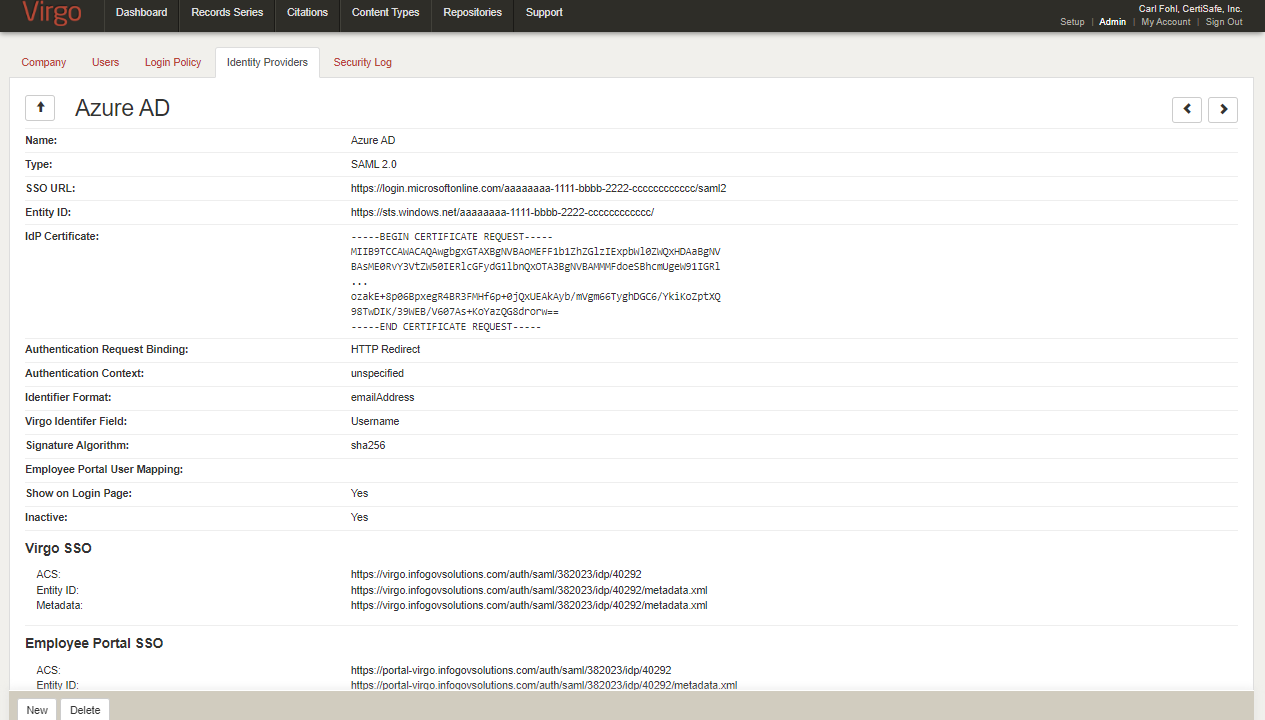
To view an example of the Identity Providers tab, hover your mouse over the image.
Terminology
The table below describes SSO and Access Unify | Lifecycle terminology.
| Feature | Description |
|---|---|
|
Identity Provider (IdP) |
The system that produces SAML assertions and authenticates users. The IdP is provided by the customer. |
|
Service Provider (SP) |
The system that receives and accepts SAML assertions. This is Access Unify | Lifecycle or the Access Unify | Lifecycle Employee Portal. |
|
Access Unify | Lifecycle |
The primary Access Unify | Lifecycle interface for named users who add and edit data. Users are typically limited to a small group who need to manage the data. |
|
Access Unify | Lifecycle Employee Portal (Employee Portal) |
The read-only Access Unify | Lifecycle interface used by most employees in an organization. Typically, all users need access, but these users do not need their own Access Unify | Lifecycle user login. |
Access Unify | Lifecycle Employee Portal SSO Configuration
The Access Unify | Lifecycle Employee Portal SSO setup follows the same process as Access Unify | Lifecycle SSO Configuration; however, there are some key differences:
- Select a portal user for Employee Portal User Mapping to grant access to users without a named user in Access Unify | Lifecycle.
- You generally will not want to show this option on the login page.
- The IdP administrator will typically grant access to this connection for all users in the organization, not just Access Unify | Lifecycle named users.
- For metadata and testing, be sure to use the Metadata link under the Employee Portal SSO heading.
- To access the Employee Portal, use the ACS link along with the desired relay state. See the table below. Replace the Xs with connection specific IDs.
Current SSO URLs for the Access Unify | Lifecycle Employee Portal
|
View |
URL |
|---|---|
|
Content Types |
https://portalunifylifecycle.accesscorp.com/auth/saml/XXXXXX/idp/XXXXX?RelayState=https%3A%2f%2fportal-virgo.infogovsolutions.com%2fportal%2fadminRetentionSearch%2fcontentTypes%3F_embed%3Dfalse |
|
Content Types Search |
https://portalunifylifecycle.accesscorp.com/auth/saml/XXXXXX/idp/XXXXX?RelayState=https%3A%2f%2fportal-virgo.infogovsolutions.com%2fportal%2fadminRetentionSearch%2fcontentTypesSearchForm%3F_embed%3Dfalse |
|
Retention Schedule |
https://portalunifylifecycle.accesscorp.com/auth/saml/XXXXXX/idp/XXXXX?RelayState=https%3A%2f%2fportal-virgo.infogovsolutions.com%2fportal%2fadminRetentionSearch%2fretentionSchedule%3F_embed%3Dfalse |
|
Retention Schedule Search |
https://portalunifylifecycle.accesscorp.com/auth/saml/XXXXXX/idp/XXXXX?RelayState=https%3A%2f%2fportal-virgo.infogovsolutions.com%2fportal%2fadminRetentionSearch%2fretentionSearchForm%3F_embed%3Dfalse |
Legacy Virgo SSO URLs for the Access Unify | Lifecycle Employee Portal
|
View |
URL |
|---|---|
|
Content Types |
https://portal-virgo.infogovsolutions.com/auth/saml/XXXXXX/idp/XXXXX?RelayState=https%3A%2f%2fportal-virgo.infogovsolutions.com%2fportal%2fadminRetentionSearch%2fcontentTypes%3F_embed%3Dfalse |
|
Content Types Search |
https://portal-virgo.infogovsolutions.com/auth/saml/XXXXXX/idp/XXXXX?RelayState=https%3A%2f%2fportal-virgo.infogovsolutions.com%2fportal%2fadminRetentionSearch%2fcontentTypesSearchForm%3F_embed%3Dfalse |
|
Retention Schedule |
https://portal-virgo.infogovsolutions.com/auth/saml/XXXXXX/idp/XXXXX?RelayState=https%3A%2f%2fportal-virgo.infogovsolutions.com%2fportal%2fadminRetentionSearch%2fretentionSchedule%3F_embed%3Dfalse |
|
Retention Schedule Search |
https://portal-virgo.infogovsolutions.com/auth/saml/XXXXXX/idp/XXXXX?RelayState=https%3A%2f%2fportal-virgo.infogovsolutions.com%2fportal%2fadminRetentionSearch%2fretentionSearchForm%3F_embed%3Dfalse |
Identity Provider Record Fields
The table below describes the fields available for identity provider records in Access Unify | Lifecycle.
|
Field Name |
Description |
Typical Setting |
|
Name |
Name or description of the identity provider that will make sense to the users |
ADFS, Azure AD, Corporate Login, etc. |
| Type |
Protocol for this connection |
SAML 2.0 is the default and only available value. |
|
SSO URL |
Single sign on URL (EntityDescriptor / IDPSSODescriptor / SingleSignOnService[@Location]) |
https://yourdomain.com/adfs/ls |
|
Entity ID |
Unique identifier of the SAML IdP. (EntityDescriptor[@entityID]) |
https://yourdomain.com/adfs/services/trust |
|
IdP Certificate |
IdP’s public signing certificate used to validate SAML assertions (EntityDescriptor / IDPSSODescriptor / KeyDescriptor[@use=signing] / KeyInfo / X509Data / X509Certificate) |
The PEM encoded certificate headers should start with BEGIN CERTIFICATE on its own line and end with END CERTIFICATE on its own line. An Access Unify | Lifecycle administrator can update your organization's identify provider certificate. |
|
Authentication Request Binding |
Protocol binding for the SSO request (EntityDescriptor / IDPSSODescriptor / SingleSignOnService[@Binding]) |
HTTP Redirect |
|
Authentication Context |
Authentication assurance level or criteria being requested |
unspecified (except, for ADFS, it is best to select “Disabled” – see notes below) |
|
Identifier Format |
Name identifier format to request from the IdP |
emailAddress |
|
Access Unify | Lifecycle Identifier Field |
Access Unify | Lifecycle field that should be used to compare to the name identifier provided by the IdP. |
Username |
|
Signature Algorithm |
Algorithm used for signing requests |
sha256 |
|
Employee Portal User Mapping |
Access Unify | Lifecycle Employee Portal user that should be used when the portal is accessed by an authenticated IdP user who doesn’t have a Access Unify | Lifecycle login. |
A user with the Portal User security role. |
|
Show on Login Page |
Display a tile for this IdP on Access Unify | Lifecycle’s Single Sign On login page |
Yes |
|
Inactive |
Deactivate an IdP without deleting |
No |
User Accounts
Access Unify | Lifecycle does not support just-in-time user provisioning. You need to create user accounts for all named users who will access Access Unify | Lifecycle. You do NOT need to create a user account for anybody who will be using the Employee Portal anonymously.
Your configuration determines how match your Access Unify | Lifecycle user accounts with your IdP accounts. The default option is to match against the Access Unify | Lifecycle account username. Other options include Email address and Federation ID. The email address is typically the same as the username in Access Unify | Lifecycle, but it doesn’t have to be. Federation ID can be any string that is unique across the users in your account.
Additional Login Options
The table below describes the Login Policy options applicable to SSO.
| Option | Description |
|---|---|
|
Session Inactivity Timeout |
Set this value, in minutes, to the session timeout of your IdP to minimize the number of timeouts. |
|
Authentication Domain Name |
A unique string to identify your Access Unify | Lifecycle instance for the purpose of providing SSO login options. This value is used in the Login URL generated by this page. This URL will provide users with tiles to initiate SSO login, as well as provide the option for standard login. |
|
Disable Standard Login (Require SSO) |
By default, users are permitted to use the standard login or SSO. To prevent the use of standard login, set this value to either Non-Administrators or All Users. If you opt for All Users, please be certain that your SSO configuration is working correctly before enabling this restriction. |
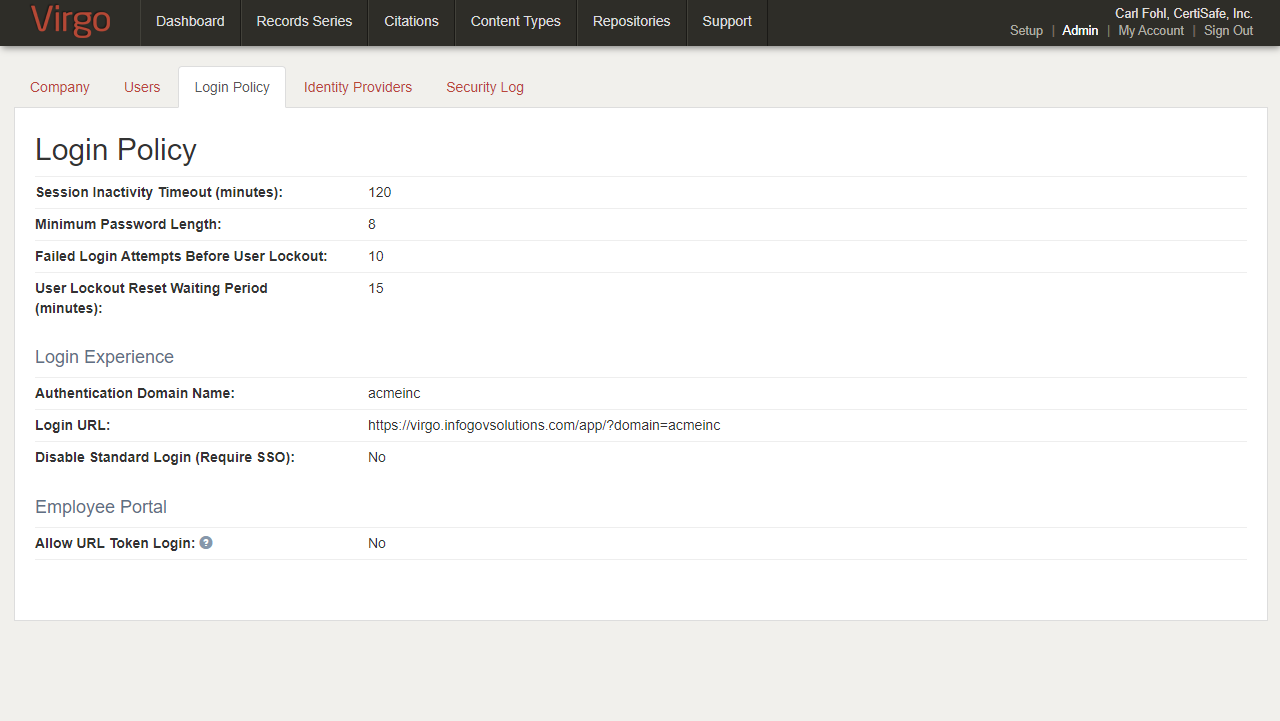
To view an example of the Login Policy tab, hover your mouse over the image.
The SSO login page, using the Login URL specified above, will provide all identity providers set to be visible on the login page:

If your IdP is ADFS, make sure that your identity provider configuration in Access Unify | Lifecycle has set the Authentication Context field to Disabled. Other values may still result in a successful login, but you may be prompted to re-enter your credentials even if you have already authenticated against Active Directory.